Sunday, 22 August 2021

SharePoint Online : Comments on List Formatting JSON

 SharePoint Online : Show comments on List Formatting JSON. 

Following source code will display List item comments count and button to open comments with edit item. 


Click on comments button will following screen to add and delete comments. 


Source Code : 


{

  "$schema": "https://developer.microsoft.com/json-schemas/sp/view-formatting.schema.json",

  "hideSelection": true,

  "hideColumnHeader": true,

  "rowFormatter": {

"elmType": "div",

"style": {

  "display": "flex",

  "flex-direction": "row",

  "height": "50px",

  "width": "285px"

},

"children": [

  {

"elmType": "div",

"style": {

  "display": "flex",

  "flex-direction": "column",

  "align-items": "center",

  "justify-content": "center",

  "height": "100%",

  "width": "15%"

},

"children": [

  {

"elmType": "div",

"style": {

  "border-width": "2px",

  "border-style": "solid",

  "height": "60px"

},

"attributes": {

  "class": "ms-borderColor-neutralSecondary"

}

  },

  {

"elmType": "div",

"style": {

  "height": "60px",

  "width": "20px",

  "border-radius": "50%",

  "cursor": "pointer",

  "outline": "none",

  "background-color": "black"

},

"attributes": {

  "class": "ms-bgColor-themePrimary"

}

  },

  {

"elmType": "div",

"style": {

  "border-width": "2px",

  "border-style": "solid",

  "height": "60px"

},

"attributes": {

  "class": "ms-borderColor-neutralSecondary"

}

  }

]

  },

  {

"elmType": "div",

"style": {

  "font-size": "20px",

  "width": "50%",

  "text-align": "left",

  "cursor": "pointer",

  "color": "#34A4E3"

},

"txtContent": "[$Title]",

"customCardProps": {

  "directionalHint": "rightCenter",

  "isBeakVisible": true,

  "openOnEvent": "click",

  "formatter": {

"elmType": "div",

"style": {

  "display": "flex",

  "flex-direction": "column",

  "height": "700px",

  "width": "850px",

  "position": "static",

  "top": "auto"

},

"children": [

  {

"elmType": "div",

"txtContent": "[$Title]",

"style": {

  "height": "50px",

  "width": "100%",

  "color": "white",

  "font-size": "20px",

  "display": "flex",

  "align-items": "center",

  "padding-left": "40px",

  "background-color": "#34A4E3"

},

"attributes": {

  "class": "ms-bgColor-themePrimary"

}

  },

  {

"elmType": "a",

"attributes": {

  "href": "[$pict]",

  "target": "_blank"

},

"children": [

  {

"elmType": "img",

"style": {

  "height": "95%",

  "width": "95%",

  "margin-top": "10px"

},

"attributes": {

  "src": "[$pict]",

  "title": "[$Title]"

}

  }

]

  },

  {

    "elmType": "button",  

  "customRowAction": {  

    "action": "defaultClick"  

  },  

  "attributes": {  

    "class": "ms-fontColor-themePrimary ms-fontColor-themeDark--hover",  

    "title": "Open Comment"  

  },  

  "style": {  

    "border": "none",  

    "background-color": "transparent",  

    "cursor": "pointer"  

  },  

  "children": [  

    {  

      "elmType": "span",  

      "attributes": {  

        "iconName": "OpenPane",  

        "class": "ms-font-xxl"  

      }  

    }  ,

{

  "$schema": "https://developer.microsoft.com/json-schemas/sp/column-formatting.schema.json",

  "elmType": "div",

 "style": {    "float": "left",

    "padding": "10px"

},

  "attributes": {

    "class": "ms-fontColor-themePrimary ms-fontSize-m"

  },

  "children": [

    {

      "elmType": "span",

      "style": {

        "padding-right": "10px",

"float": "left"

      },

      "attributes": {

        "iconName": "Comment"

      }

    },

    {

      "elmType": "span",

      "txtContent": "=if([$_CommentCount] == '' , 0 ,[$_CommentCount]) "

    }

  ]

}  

  ]},

  {

"elmType": "div",

"txtContent": "[$Description]",

"style": {

  "height": "80%",

  "width": "85%",

  "padding-top": "20px"

}

  }


]


  }

}

  }

]

  }

}

SharePoint Office 365 List Tile View

SharePoint Office 365 List formatting with Tile view 


Products can be shown in following nice way. 


Step 1: Create List with following 4 columns 

Title : Single Line Text
Location: Single Line Text
ProductPhoto : HyperLink 
ProjectURL : HyperLink ,


Step 2 : Upload Proper data 

Step 3 :  GO to All Items in List and click on Format current view as shown in following 


Step 4:  select Advance mode  as shown in following picture 


Step 5:  Copy following code in Text Editor and save it. 


Step 6:  Select Tile and save as view as showing in following picture. 


Source Code : 


{
"$schema": "https://developer.microsoft.com/json-schemas/sp/v2/tile-formatting.schema.json",
"height": "450",
"width": "300",
"formatter": {
"elmType": "div",
"style": {
"display": "flex",
"align-items": "stretch",
"margin-bottom": "16px",
"min-width": "150px",
"flex-grow": "1",
"justify-content": "space-around",
"padding": "8px",
"color": "#333333"
},
"children": [
{
"elmType": "div",
"style": {
"width": "95%",
"height": "98%",
"box-shadow": "0px 1.6px 3.6px 0 #00000024, 0px 0.3px 0.9px 0 #00000024",
"overflow": "hidden",
"border-radius": "2px"
},
"attributes": {
"class": "ms-bgColor-neutralLighterAlt"
},
"children": [
{
"elmType": "div",
"style": {
"display": "inline-block",
"min-width": "250px",
"text-align": "center",
"margin-top": "50px"
},
"children": [
{
"elmType": "img",
"attributes": {
"src": "=if([$ProductPhoto] == '', @currentWeb + '/_layouts/15/userphoto.aspx?size=M', [$ProductPhoto])",
"title": "=if([$ProductPhoto] == '', 'No picture available', [$Picture.desc])"
},
"style": {
"width": "85%",
"height": "200px"
}
}
]
},
{
"elmType": "div",
"style": {
"display": "inline-block",
"min-width": "250px",
"vertical-align": "top",
"padding-top": "16px",
"text-align": "center"
},
"children": [
{
"elmType": "div",
"style": {
"margin-bottom": "15px",
"font-size": "20px",
"font-weight": "600"
},
"txtContent": "[$Title]"
},
{
"elmType": "div",
"style": {
"font-size": "14px",
"margin-bottom": "20px",
"text-align": "center"
},
"txtContent": {
"operator": "+",
"operands": [
"",
"[$Location]"
]
}
},
{
"elmType": "a",
"style": {
"text-decoration": "none"
},
"attributes": {
"href": "[$ProjectURL]",
"target": "_blank"
},
"children": [
{
"elmType": "div",
"style": {
"font-size": "14px",
"margin-top": "15px",
"height": "30px",
"text-align": "center",
"width": "144px",
"vertical-align": "middle",
"display": "inline-block",
"color": "#444",
"border": "2px solid #CCC",
"background": "#DDD",
"box-shadow": "0 0 5px -1px rgba(0,0,0,0.2)",
"cursor": "pointer",
"max-width": "100px",
"padding": "6px 10px 0px 10px"
},
"attributes": {
"target": "_blank",
"class": "ms-bgColor-white--hover"
},
"txtContent": "View Project"
}
]
}
]
}
]
}
]
}
}


Output 


SharePoint Office 365 List formatting with Tile view

SharePoint Office 365 List formatting with Tile view 

Products can be shown in following nice way. 


Step 1: Create List with following 4 columns 

Title : Singe Line Text
Location: Singe Line Text
ProductPhoto : HyperLink ,
Features: Multilines Lines Text

Step 2 : Upload Proper data 

Step 3 :  GO to All Items in List and click on Format current view as shown in following 


Step 4:  select Advance mode  as shown in following picture 


Step 5:  Copy following code in Text Editor and save it. 


Step 6:  Select Tile and save as view as showing in following picture. 


Source Code


{
  "$schema": "https://developer.microsoft.com/json-schemas/sp/view-formatting.schema.json",
  "tileProps": {
    "height": "450",
    "width": "300",
    "formatter": {
      "elmType": "div",
      "style": {
        "display": "flex",
        "align-items": "stretch",
        "margin-bottom": "16px",
        "min-width": "150px",
        "flex-grow": "1",
        "justify-content": "space-around",
        "padding": "8px",
        "color": "#333333"
      },
      "children": [
        {
          "elmType": "div",
          "style": {
            "width": "95%",
            "height": "98%",
            "box-shadow": "0px 1.6px 3.6px 0 #00000024, 0px 0.3px 0.9px 0 #00000024",
            "overflow": "hidden",
            "border-radius": "2px"
          },
          "attributes": {
            "class": "ms-bgColor-neutralLighterAlt"
          },
          "children": [
            {
              "elmType": "div",
              "style": {
                "display": "inline-block",
                "min-width": "300px"
              },
              "children": [
                {
                  "elmType": "img",
                  "attributes": {
                    "src": "=if([$ProductPhoto] == '', @currentWeb + '/_layouts/15/userphoto.aspx?size=M', [$ProductPhoto])",
                    "title": "=if([$ProductPhoto] == '', 'No picture available', [$Picture.desc])"
                  },
                  "style": {
                    "width": "100%",
                    "height": "200px"
                  }
                }
              ]
            },
            {
              "elmType": "div",
              "style": {
                "display": "inline-block",
                "min-width": "300px",
                "vertical-align": "top",
                "padding-left": "16px",
                "padding-top": "16px"
              },
              "children": [
                
                {
                  "elmType": "div",
                  "style": {
                    "margin-bottom": "12px",
                    "font-size": "16px",
                    "font-weight": "600"
                  },
                  "txtContent": "[$Title]"
                },
                {
                  "elmType": "div",
                  "txtContent": "Location",
                  "style": {
                    "color": "#767676",
                    "font-size": "12px",
                    "margin-bottom": "2px"
                  }
                },
                {
                  "elmType": "div",
                  "style": {
                    "font-size": "14px",
                    "margin-bottom": "12px"
                  },
                  "txtContent": {
                    "operator": "+",
                    "operands": [
                     
                      "",
                      "[$Location]"
                    ]
                  }
                },
                {
                  "elmType": "div",
                  "txtContent": "Features",
                  "style": {
                    "color": "#767676",
                    "font-size": "12px",
                    "margin-bottom": "2px"
                  }
                },
                {
                  "elmType": "div",
                  "style": {
                    "font-size": "14px",
                    "margin-bottom": "10px",
                    "width": "235px",
                    "height": "70px"
                  },
                  "txtContent": "[$Features]"
                }
              ]
            }
          ]
        }
      ]
    }
  }
}


Output 

Friday, 26 March 2021

Office 365: View your Google Calendar in Outlook

Office 365: Integrate Google Calendar to Outlook 

Step 1: Login your Google account and click on settings option and then click on Calendar 


Step 2: Open your Google Calendar in a browser.  Select "My Calendars" on the left, then select the "…" next to the calendar name.  Click Settings:


Step 3Look for "Integrate Calendar", then copy the "Secret address in iCal format"


Step 4
Now, we’ll move to Outlook–select File, then “Account Settings”, then “Account Settings” again:


Step 5:
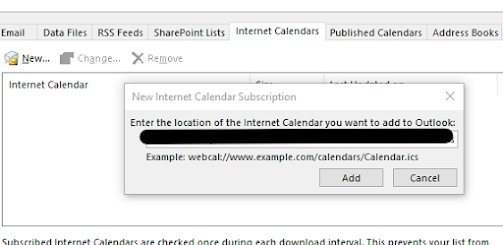
 Choose the “Internet Calendars” tab, then select “New”:


Step 6

Paste the URL you previously copied here, then click “Add”:


Step 7:

 Name the calendar (this will display in the Outlook calendar list), and enable any options as needed:


Step 8:

Your Google Calendar will appear in your “Other Calendars” list and will update periodically, automatically:


Monday, 22 July 2019

Custom Timer Jobs not visible in Central Administration in SharePoint

Custom Timer Jobs not visible in Central Administration in SharePoint 

Recently i have an issue in our Custom Timer jobs. The Custom Timer Jobs not visible in Central Admin. So I fixed that issue and tried to start timer job manually. But in Central Admin--> Monitoring--> Job Definitions  here i could not see the custom timer jobs.
But in back end timer jobs are running and i could see the updates in SharePoint lists.

Reason:
When you deploy the WSP solution using STSADM or POWERSHELL it will be deployed only to those servers which have WFE role. Application servers may not have WFE role. So if your app server is not WFE, custom assemblies won’t be installed to its GAC.

For workaround you can follow the below methods.

Method 1: Using powershell script deactivate the features and again enabled it. Now you could see the timer jobs in Job History not in Job definitions. Previously even the jobs not appearing in job history also.


Method -2: Application servers should have the timer job dlls in the assembly. For this add the dll's to GAC.
Manually if you try to add the dll's to GAC you will see the access denied error. To fix this please see this Manually how to install an Assembly into the GAC without gacutil
Once you add the dll's to application server gac perform iisreset. Now can see the custom timer jobs in central admin farm.

NOTE: These dlls won't be updated next time you upgrade the solution. Because solutions are not upgraded automatically on the server without WFE role. Again manually you will need to add the dlls to application server GAC.

In SharePoint 2010 environment based on the active services, will decide what is the application servers and what is the wfe's. WFE's will have the service 'SharePoint Foundation Application' in turn on mode.
In Application server this service will be inactive mode .


So you will need to activate the same service in Application server also. So the application server will have the WFE role. Then you can see the custom timer jobs in central admin farm.

Sunday, 16 June 2019

Forms Claims Authentication

 var formsAuthOption = SPFormsAuthenticationOption.None;
            var tokenType = SPSessionTokenWriteType.WriteSessionCookie;
             if (rememberme)
                 {
                     formsAuthOption = SPFormsAuthenticationOption.PersistentSignInRequest;
                    tokenType = SPSessionTokenWriteType.WritePersistentCookie;
                 }
    var settings = SPContext.Current.Site.WebApplication.IisSettings[SPContext.Current.Site.Zone];
             var authProvider = settings.FormsClaimsAuthenticationProvider;
             var securityToken = SPSecurityContext.SecurityTokenForFormsAuthentication(new Uri(SPContext.Current.Web.Url), authProvider.MembershipProvider,authProvider.RoleProvider, "test123",  "password", formsAuthOption);
             
  var fam = SPFederationAuthenticationModule.Current;
            fam.SetPrincipalAndWriteSessionToken(securityToken, tokenType);